Create a form
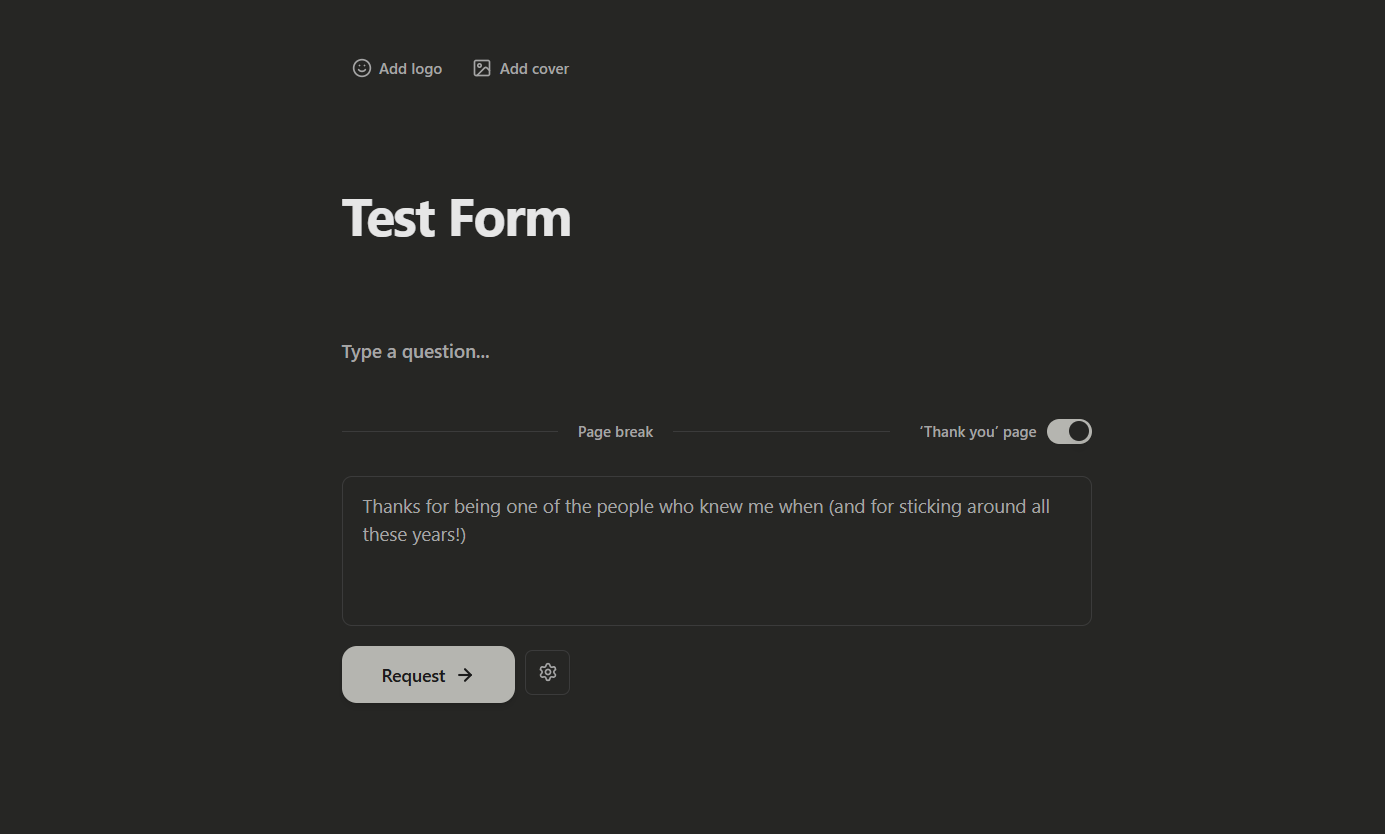
FormGenyus form builder works like a lightweight document editor. Start with a heading, add questions and input blocks, then preview and publish when your form is ready.
Add questions
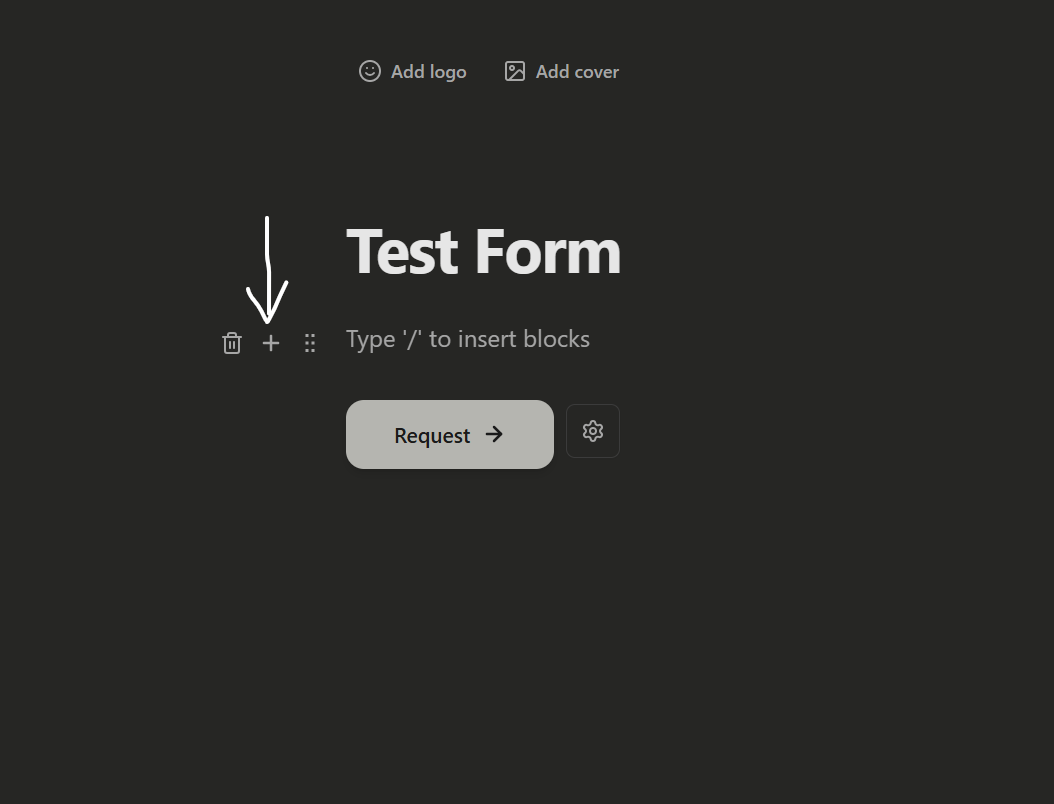
Click the + button to see the complete list of questions you can add to your form.
Customize question settings
Each question type has its own set of settings you can customize. You can discover these via the ⋮⋮ icon left of the question block.
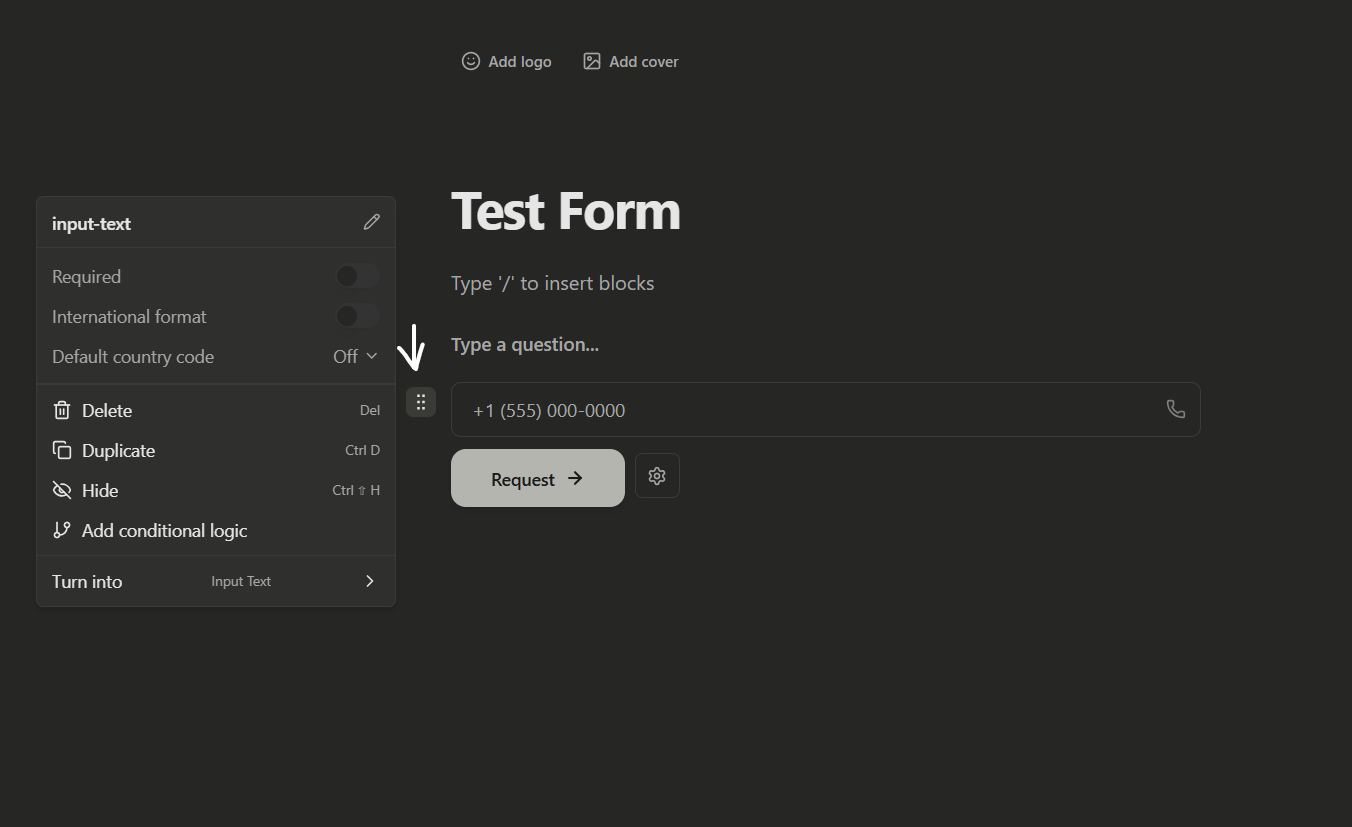
There, you'll find options, such as:
- Mark fields as required
- Set text and number min/max validation rules
- Enable email verification for email inputs (Business/Enterprise)
- Set file upload limits and allowed file types
- Configure date rules: disabled days, before/after limits, specific dates, and date ranges
- Set choice fields with randomize and “Other” options
- Toggle dropdowns between single and multi-select
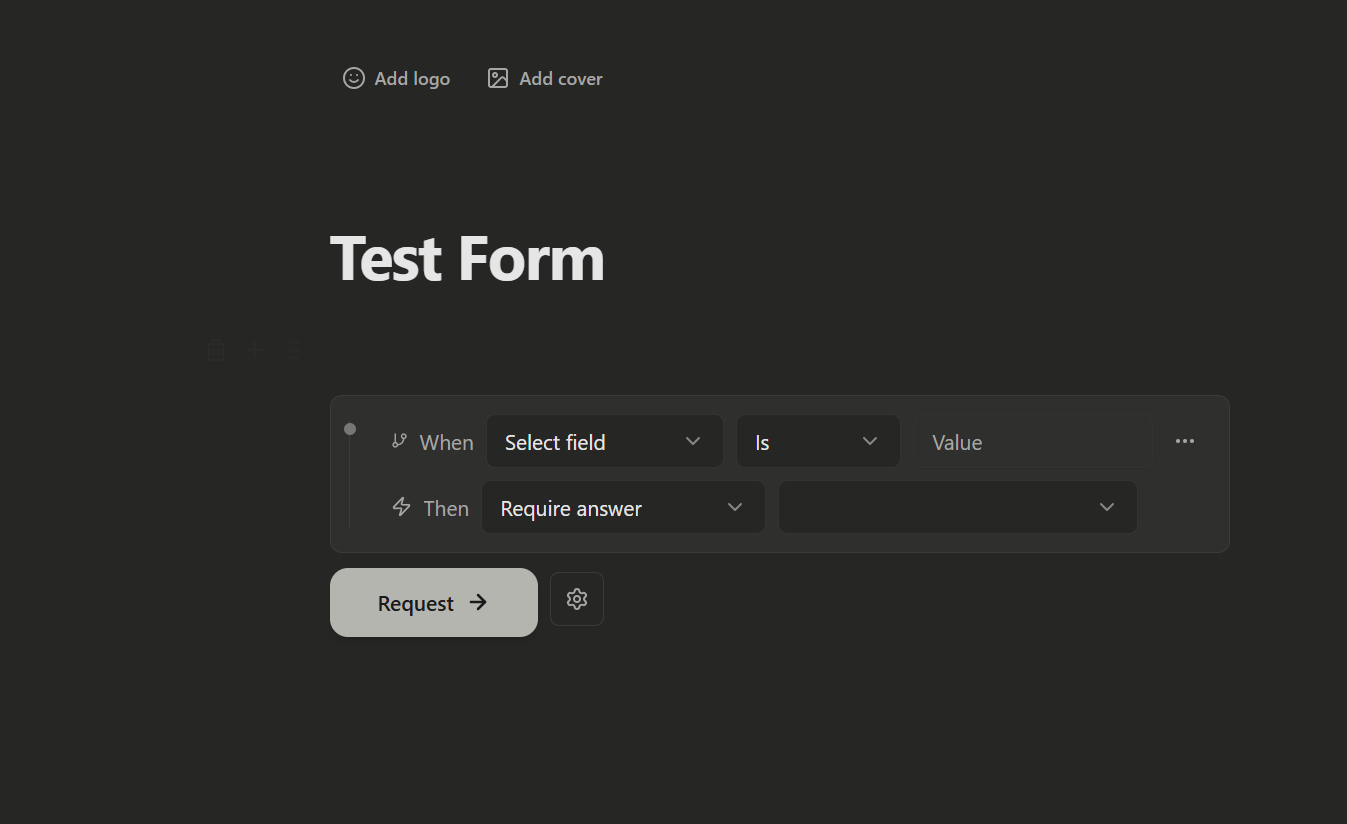
- Hide/show blocks, duplicate/delete blocks, and attach conditional logic
- Turn on/off and customize a post-submit Thank You page
Add smart features
FormGenyus lets you create advanced form workflows using smart features like conditional logic, answer-aware required rules, and multi-page flows. Use these to build dynamic intake forms that adapt to respondent inputs.
Conditional logic
Conditional logic lets your form react to previous answers. Use it to make specific fields required only when conditions are met, so follow-up questions appear only when relevant and respondents move through a cleaner, step-by-step flow.
Add a Thank you page
A Thank You page is the message respondents see immediately after submitting your form. You can create and customize your own Thank You experience.
Add the thank-you block in your form flow, then customize it with text, headings, links, and media content.