
Date
The Date block makes it easy to collect dates in a consistent and structured format for bookings, deadlines, scheduling, and availability workflows. With customizable formats, default values, and advanced date rules, FormGenyus gives you full control over how respondents select and submit dates.
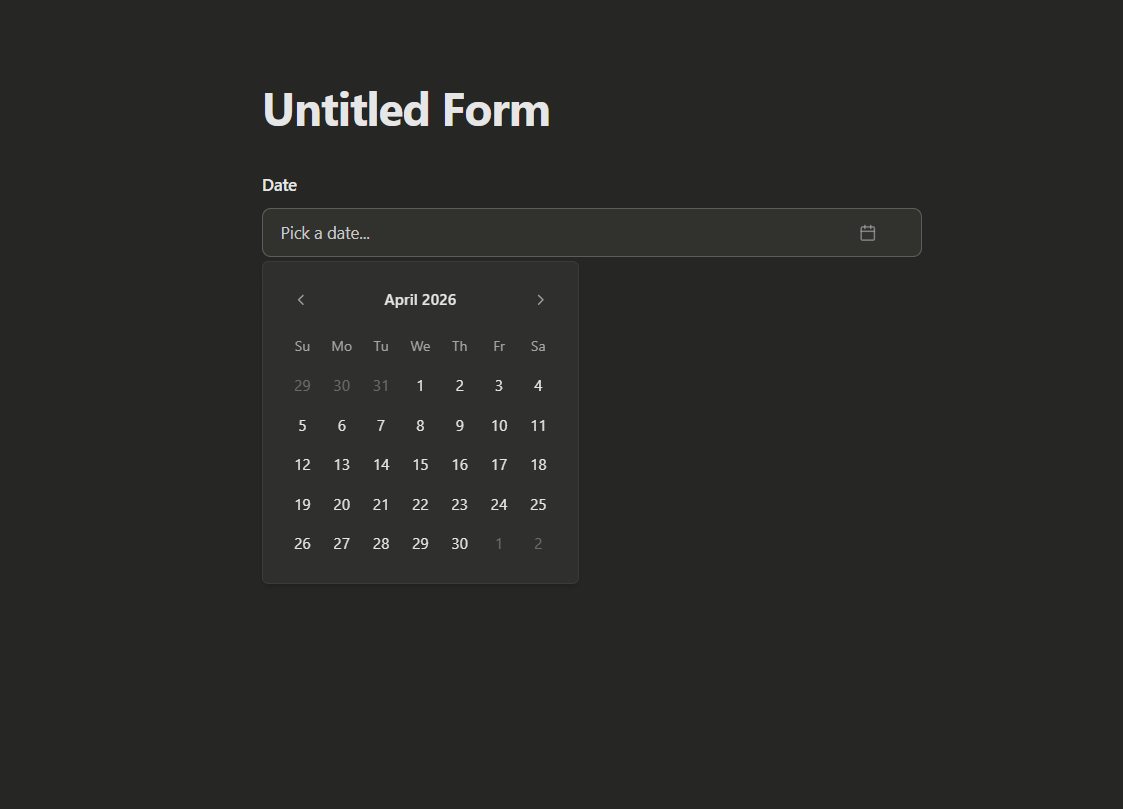
Insert a date block
Simply type /date to insert the Date block.
Date settings
Add a default answer
Set a default date value when you want to prefill a known date in your form flow.
Change format
Date blocks use the workspace language format by default. You can also switch the format to:
- Month/Day/Year
- Day/Month/Year
- Year/Month/Day
- Day.Month.Year
- Year-Month-Day
The selected format controls how dates are entered, shown to respondents in the calendar, and used in submission notifications.
You can also choose which day the week starts on in date settings.
Enable or disable specific dates
You can allow or disable specific dates and ranges for Date block input.
- Disable days in the past or future, or specific weekdays.
- Set a before/after date after which all dates are disabled.
- Allow only dates in a defined range, or only specific days.
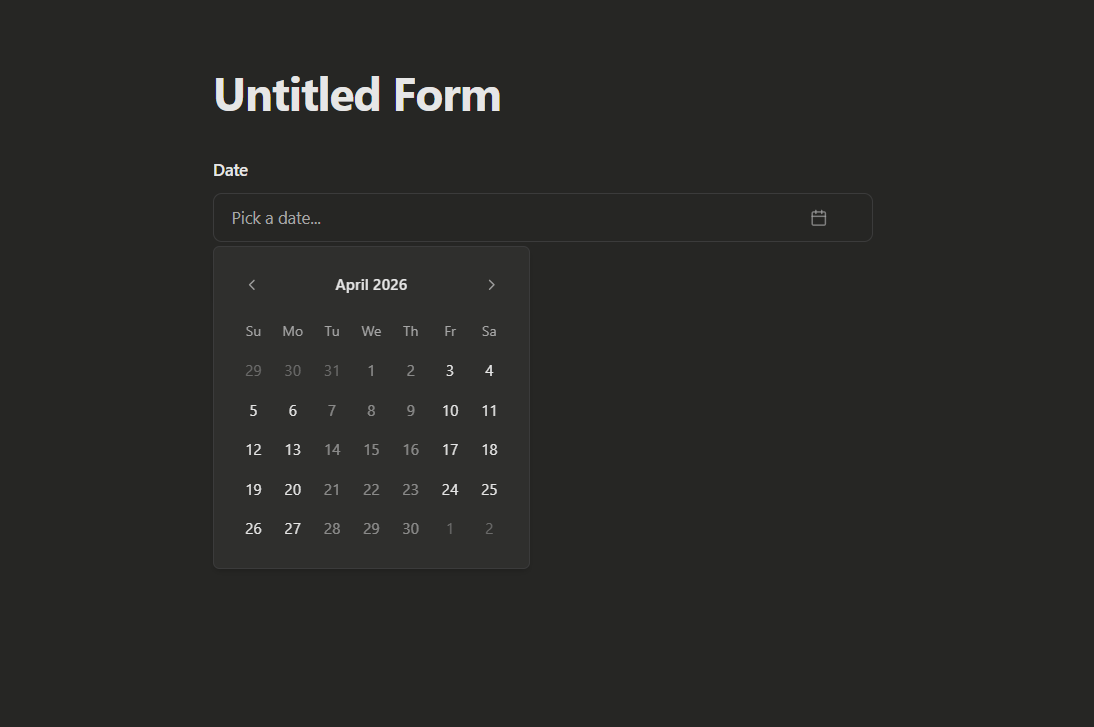
View dates
Date answers appear in submissions using the selected display format, making date responses easier to scan and review.