
Multiple choice
Use the Multiple choice block to collect option-based answers in FormGenyus. You can configure single-select or multi-select behavior, set defaults, randomize options, and customize how options are displayed.
How it works
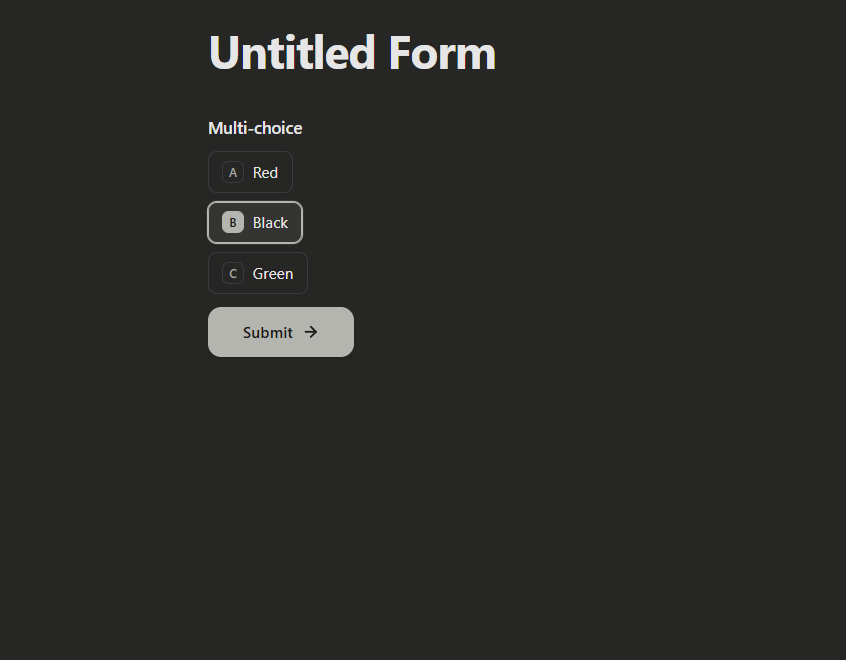
Type /multiple to insert a multiple choice question. Add your question title and enter options.
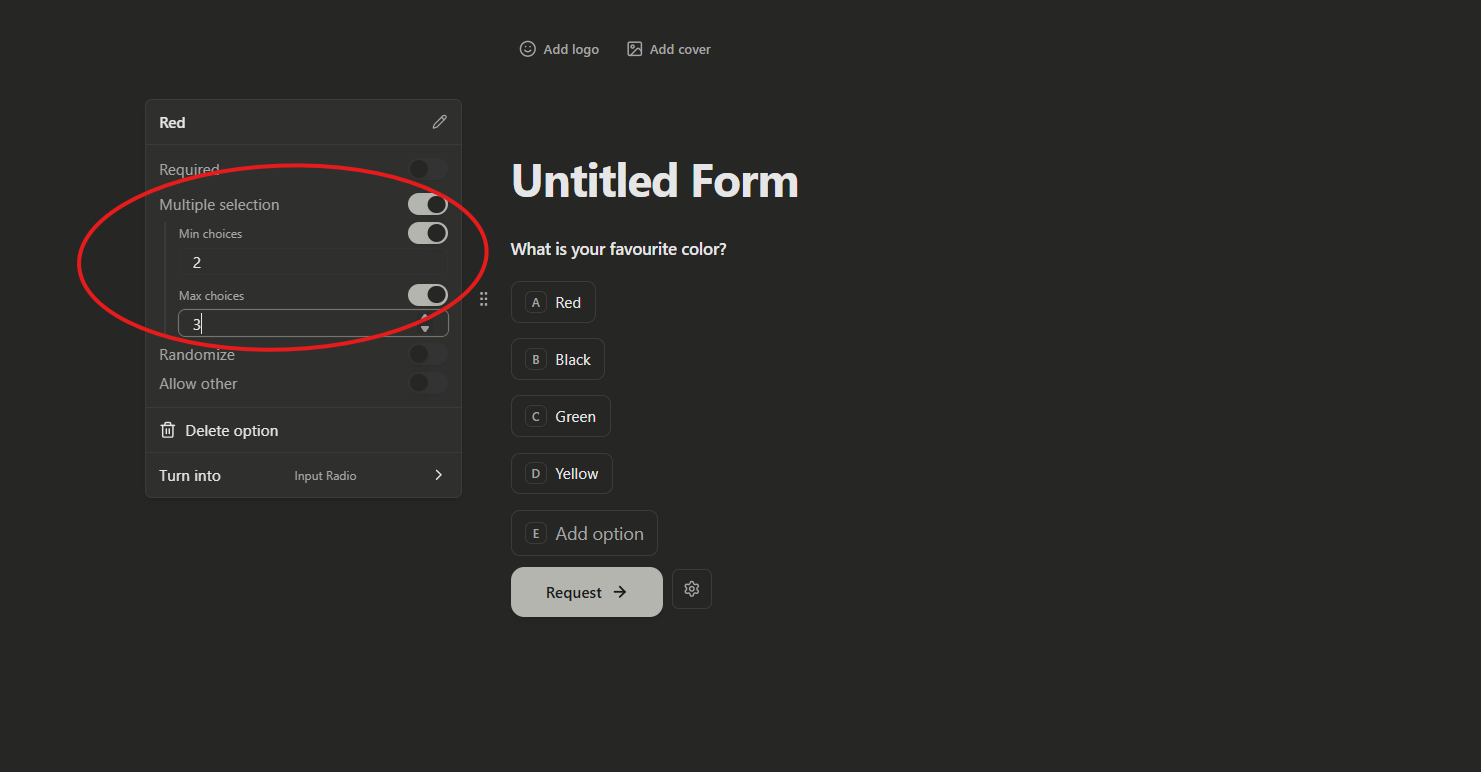
By default, respondents select one option. Open block settings and enable Multiple selection when you need multi-select responses.
Multiple choice settings
Add a default answer
Set one or more default options when you want pre-selected values in the form.
Enable an 'Other' option
Add an Other option to allow respondents to provide a custom value outside predefined choices.
Randomize options
Randomize option order for each respondent when you want to reduce order bias.
Multiple selection
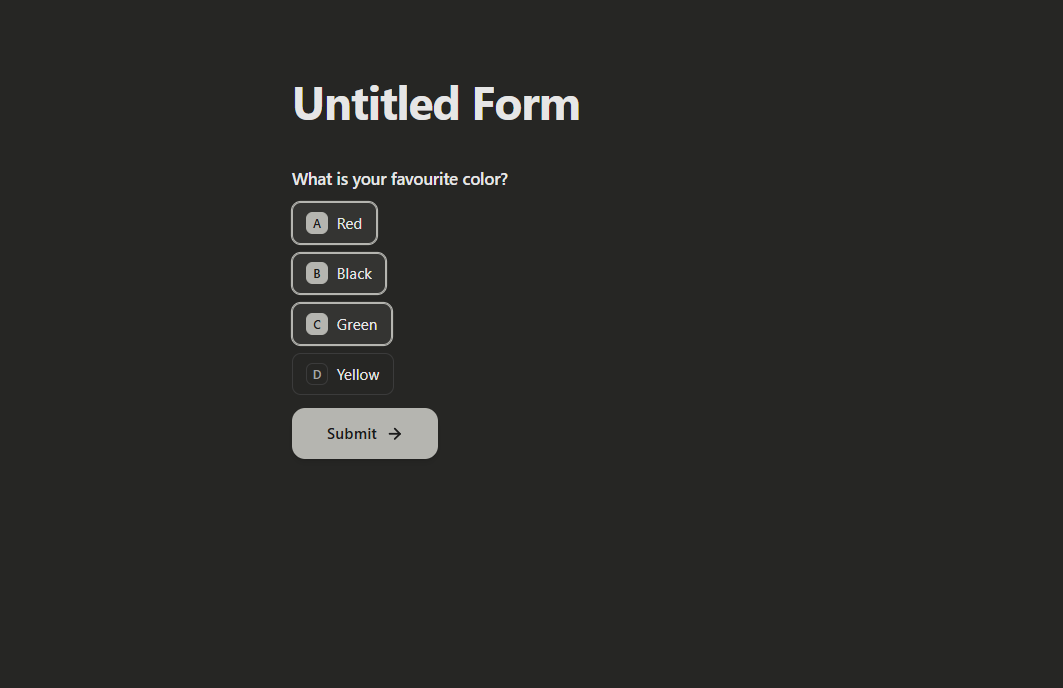
After enabling Multiple selection, you can set minimum and maximum choices to control how many answers respondents may select.
Bulk insert options
Paste a list of options to create many choices quickly in one step.
Badge
Use badges to label options with short markers like A/B/C or priority tags.
Color-code options
Apply color accents to options when you want stronger visual grouping.
Add an image
Add images to options to support visual selection workflows.