
The Email block lets you capture email addresses accurately with built-in validation. It helps respondents enter valid addresses before continuing, making FormGenyus submissions more reliable for contact workflows, newsletters, and lead capture forms.
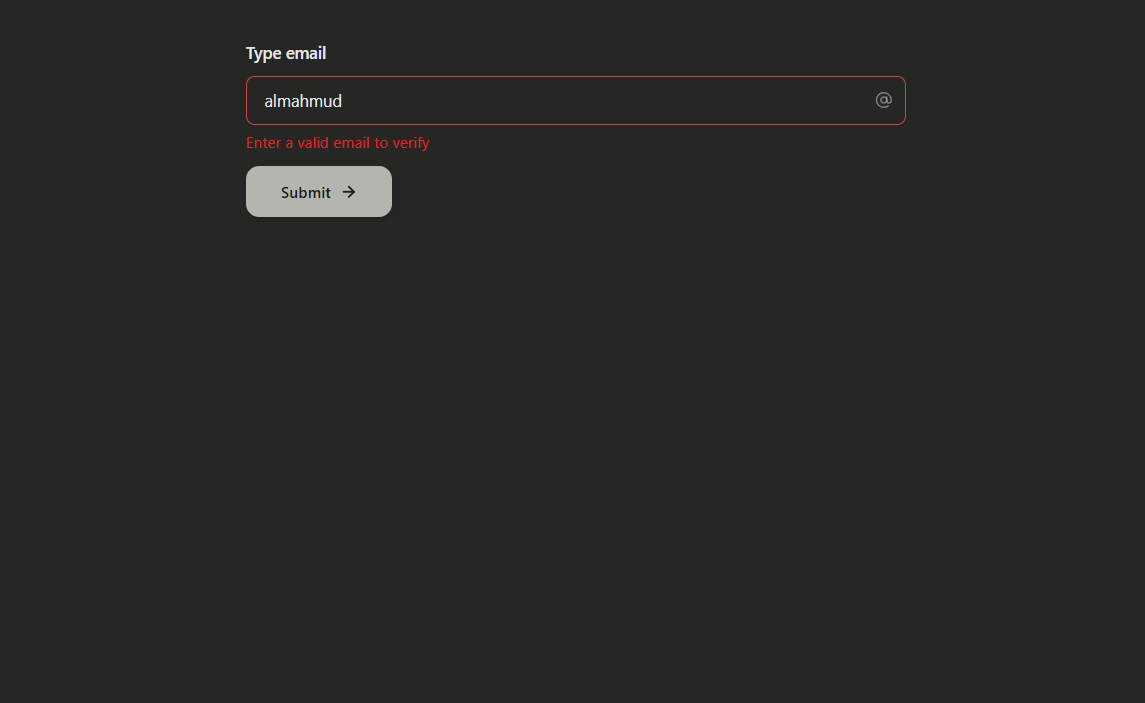
Add an Email block
Simply type /email to insert the email block. Add a question title or placeholder text to avoid untitled fields.
Respondents who do not enter a valid email address will see an error message. Use Preview mode to test this behavior.
Email settings
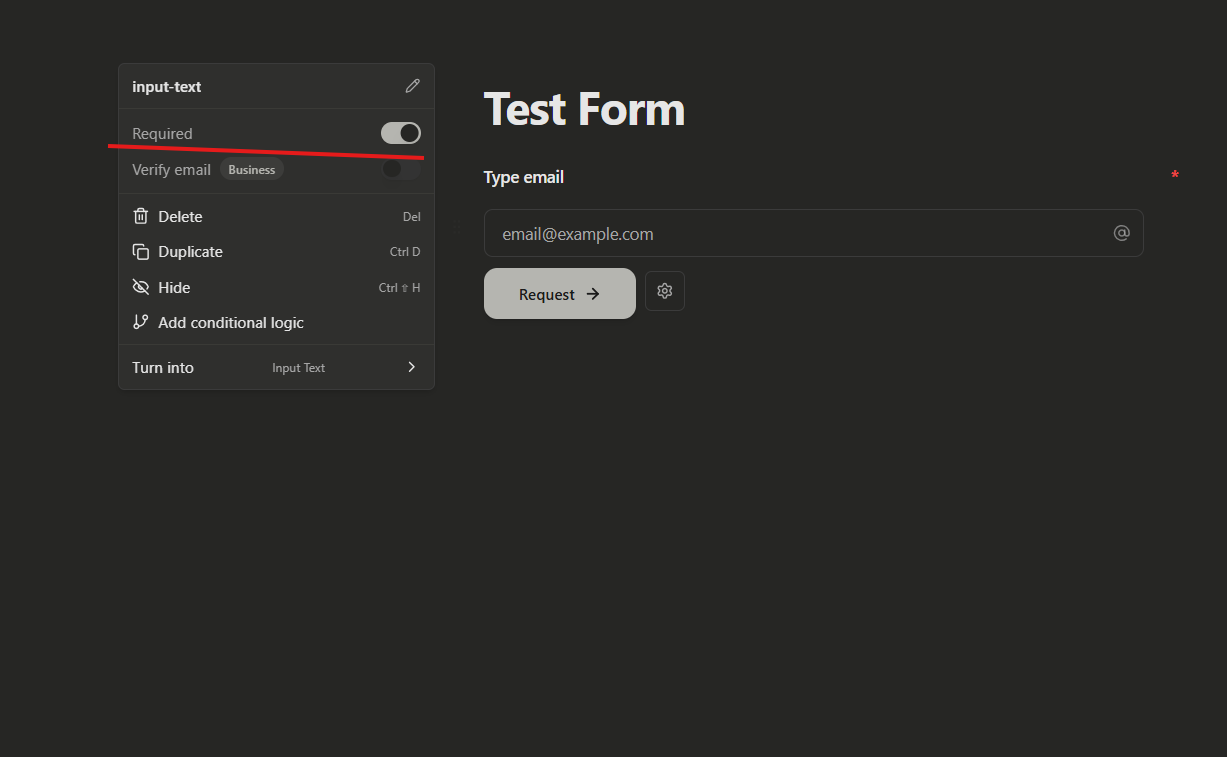
Make it required
Make the Email block required by using the Required toggle or the shortcut cmd/ctrl + shift + R.
Add a default answer
Add a default email value when you need prefilled examples or default test data during form setup.
Verify emails
You can enable email verification for an Email block. When enabled, respondents must verify their email before moving forward or submitting the form.
Email verification is available on FormGenyus Business and Enterprise plans.
Turn this on from Email block settings using the Verify email toggle.
How it works:
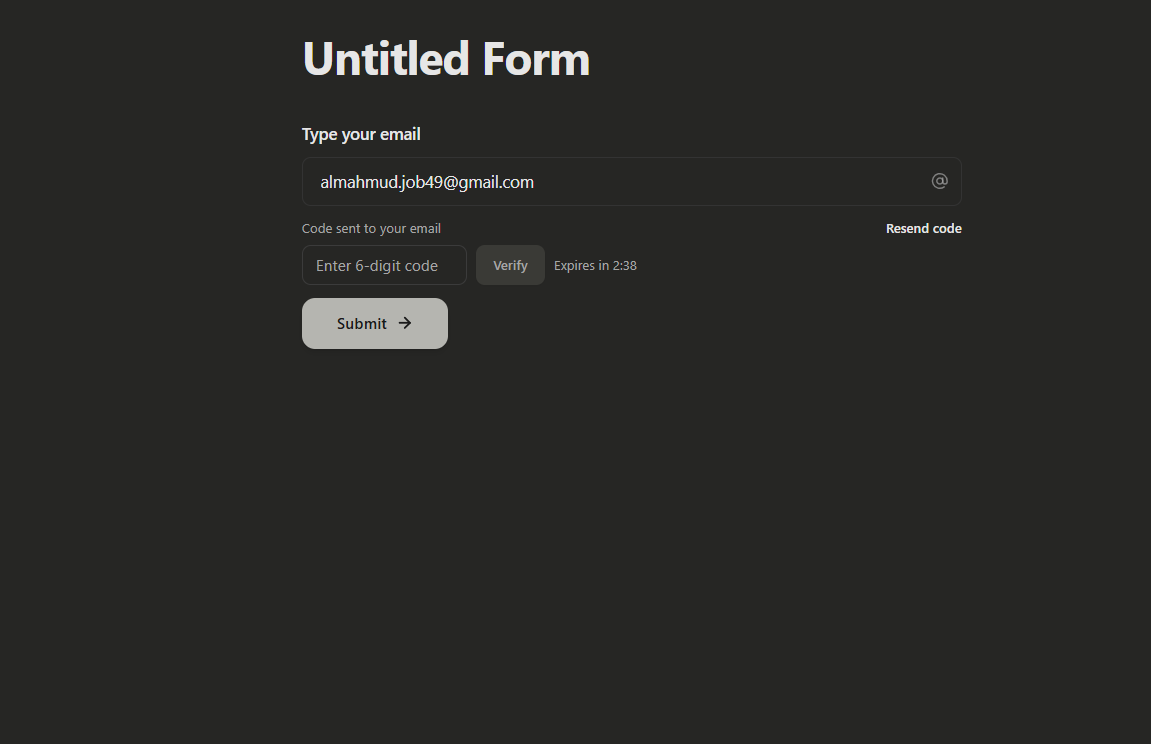
- After entering a valid email address, a Verify button appears.
- Clicking it sends an email with a 6-digit verification code.
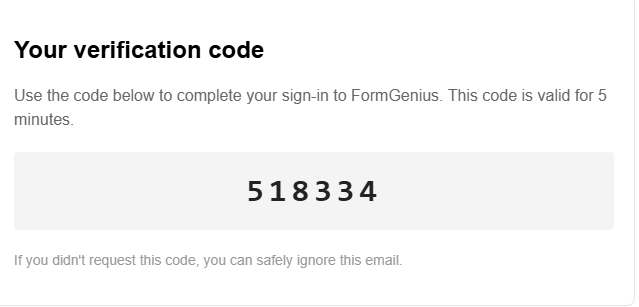
- The respondent enters the code in the form to verify the email.
- Once verified, they can continue with the form.
Respondents who did not receive the code can request a new one. Verification codes expire after one hour.
Email verification sender
Configure the sender identity for verification emails so recipients recognize the request and can trust the verification step.
Domain-specific email verification
Use domain-specific verification settings when you need respondents from specific organizations or want to align verification with your sending domain policy.