
Number
The Number block allows you to collect any data that requires numerical input. Whether you are gathering respondents' ages, donation pledges, or employee expenses, you can customize this block to fit your FormGenyus workflow.
Add a Number block
Simply type /number to insert the Number block.
Add a title or label block above the Number block or enter placeholder text directly inside the block. Placeholder text helps respondents understand the expected input.
Number settings
Make it required
Make the Number block required by using the Required toggle.
Change format
Number blocks use a number format by default. You can also switch formats to:
- Percent
- Currency (US Dollar, Euro, or Pound)
- Custom
Set min or max number
You can set a minimum or maximum limit for Number block input. Enable the corresponding toggle and enter the numeric value. For example:
- Minimum: Set a lower limit of 18 for an age input in an adult-only survey.
- Maximum: Set an upper limit of 100 for the number of event tickets available.
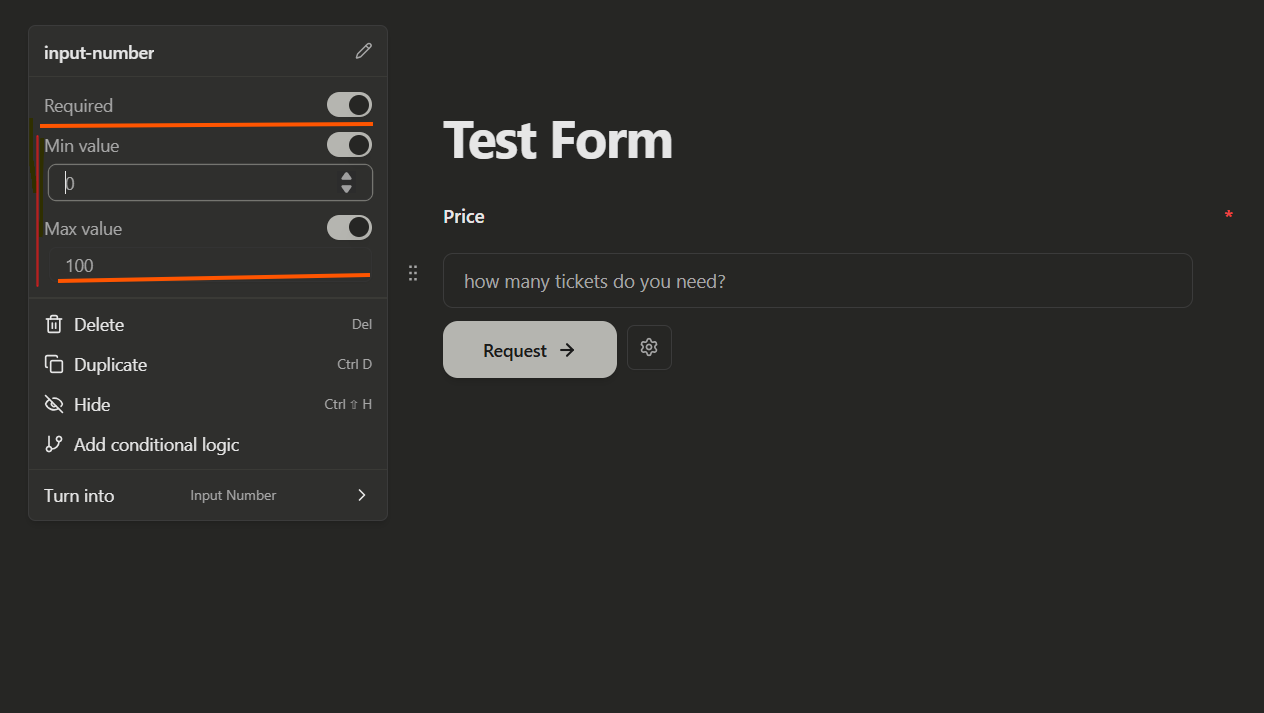
If respondents enter a value that does not fit the minimum or maximum limits you set, they will see an error message when submitting the form.