File upload forms
A file upload form lets you collect files directly from respondents without requiring sign-in. With FormGenyus, you can add a file upload field to any form and collect images, PDFs, videos, audio files, and documents with configurable limits and rules.
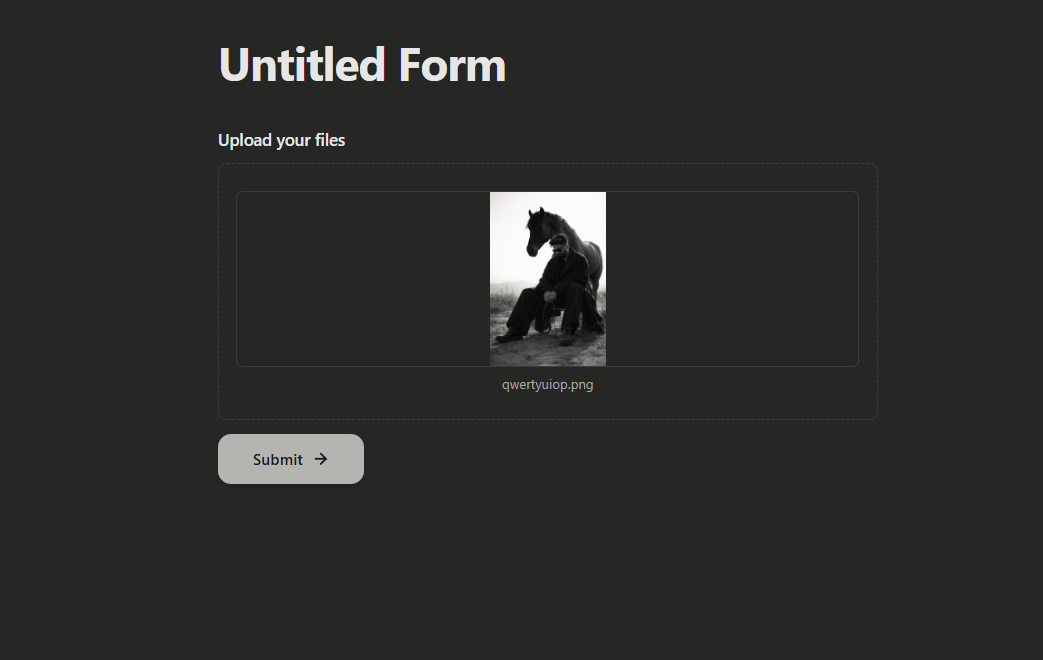
File upload limits depend on your FormGenyus plan. Configure per-file size and allowed file types in block settings.
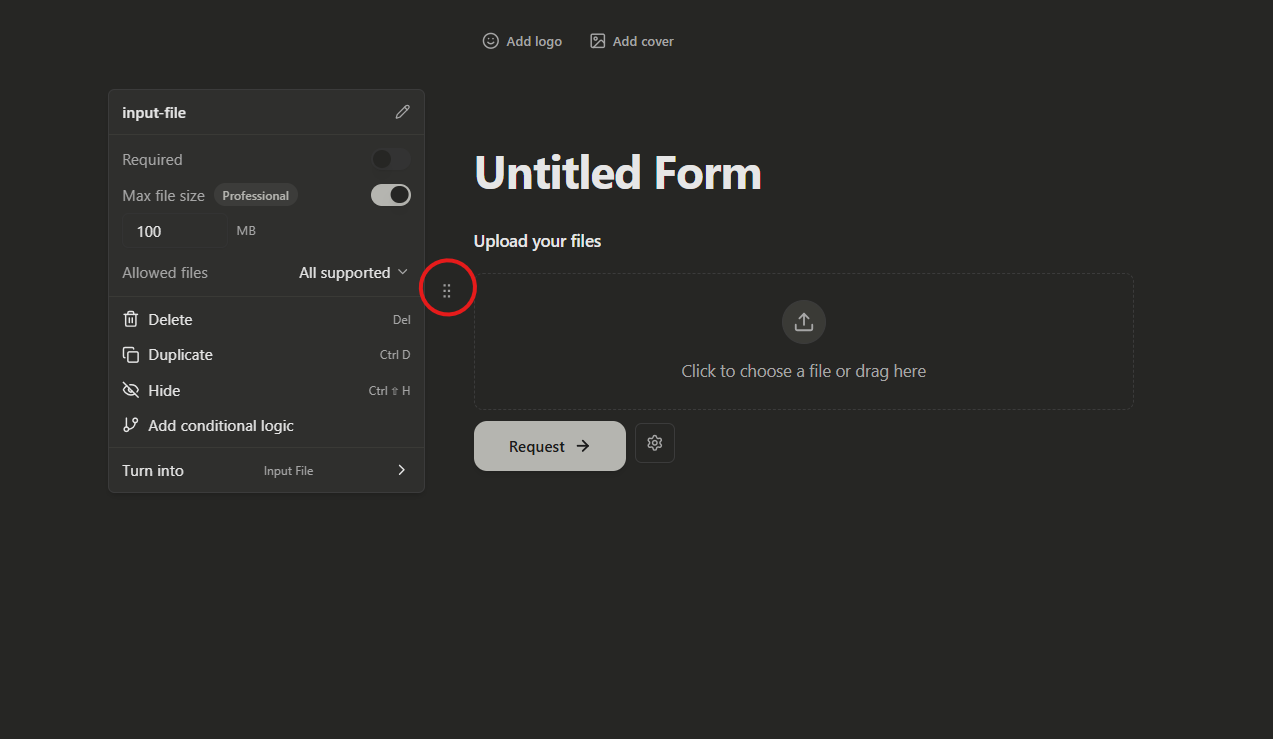
File upload settings
Open the file upload block settings to configure how uploads should behave for respondents.
- Mark the upload block as required or optional.
- Allow multiple files and set minimum/maximum number of files.
- Set a maximum file size per file.
- Define which file types are allowed.
- Hide the block and reveal it with conditional logic when needed.
Set a maximum file size
Enable Max file size to set a per-file size limit. Respondents will see this limit in the upload block while submitting.
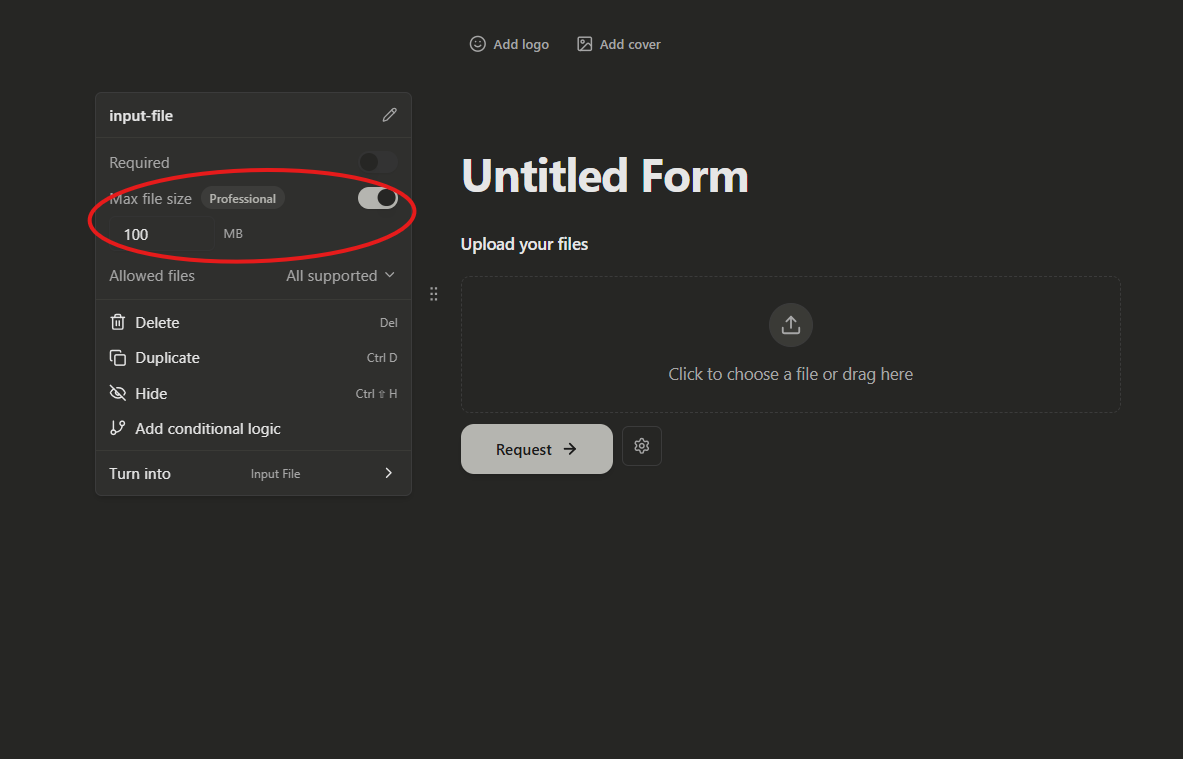
Large file collection may require a higher-tier plan depending on workspace limits.
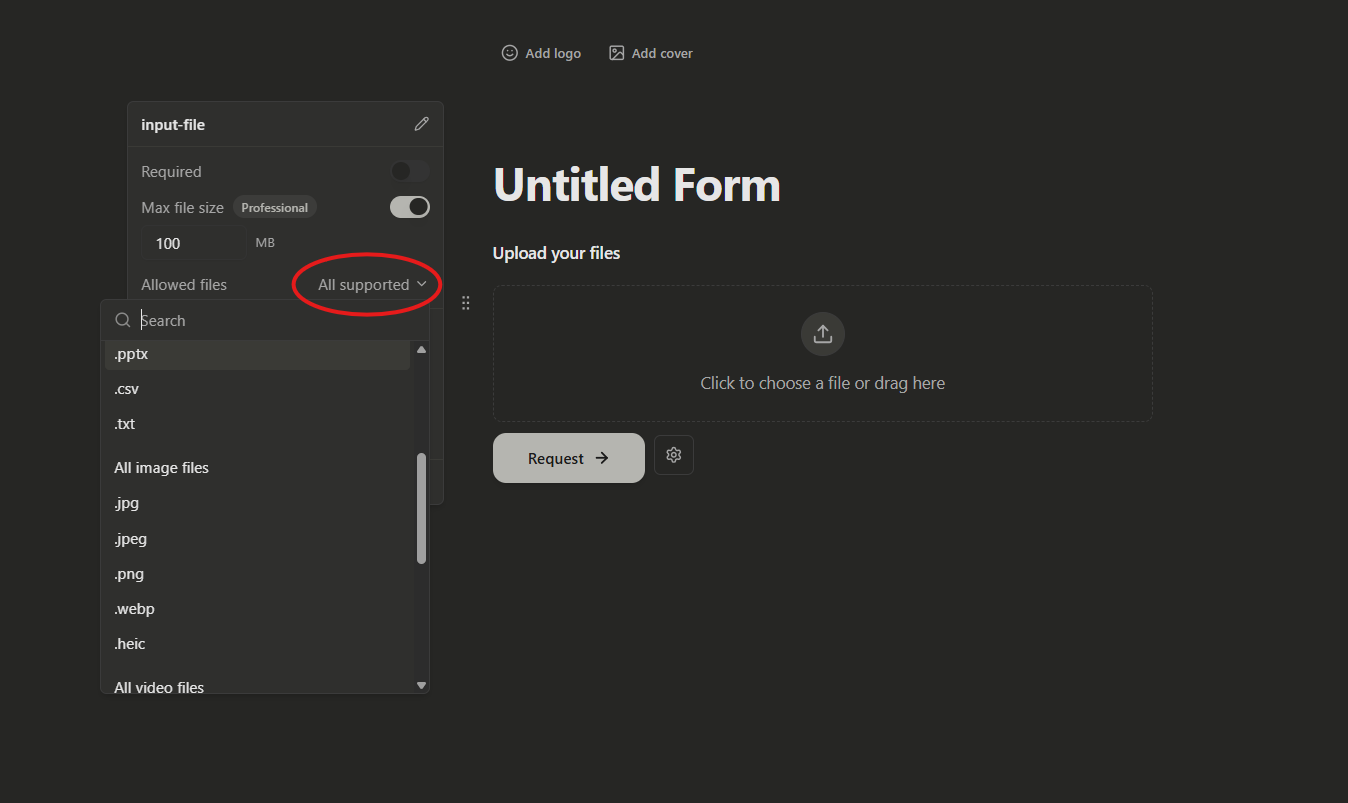
Restrict file types
To accept only specific file types, enable Allowed files and choose the file type(s) you want to allow.
- Accept all image files when you need broad image support across multiple formats.
- Restrict to a specific extension (for example,
.jpg) for tighter input control.